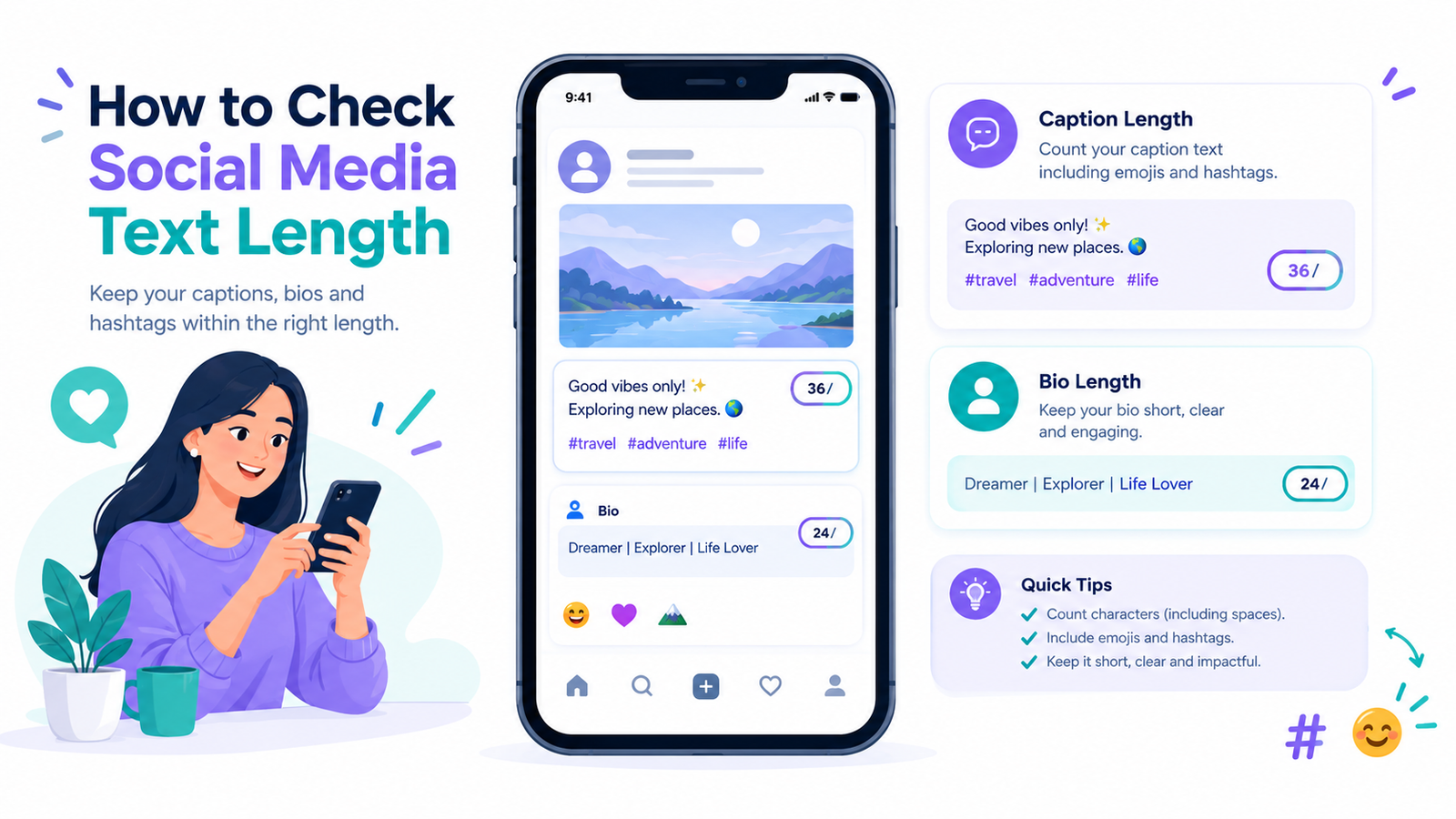

Before publishing a YouTube video, check that your title and description fit the platform's limits. YouTube allows up to 100 characters in a video title and 5,000 characters in a video description. Staying within these limits is straightforward, but writing metadata that viewers can understand at a glance takes a little more care.
This guide explains how the limits work, what to include when counting characters, how to check your text before uploading, and how to write clearer titles and descriptions. You'll also find practical examples and a reusable description template.
What Is the YouTube Title and Description Character Limit?
YouTube sets separate character limits for video titles and descriptions. These limits define how much text you can enter in each field, but they do not mean you need to use every available character.
- Video title: Up to 100 characters.
- Video description: Up to 5,000 characters.
- Counting: Include spaces, punctuation, numbers, and symbols in your text check.
- Practical approach: Write enough to explain the video clearly, then remove words that do not add useful information.
Think of the title and description as two parts of the same message. The title gives viewers a quick idea of the video's main topic, while the description provides supporting details. For an image-resizing tutorial, a title such as “How to Resize an Image Without Losing Quality” identifies the main task. The description can then explain which steps the tutorial covers and link to any relevant tools or resources. Both fields should describe the same video accurately without repeating the same wording unnecessarily.
Keep in mind that the maximum character limit and the amount of text viewers see on their screens are two different things. A title may fit within YouTube's limit but still appear shortened in some layouts. Placing the main topic near the beginning helps viewers understand it quickly.
For the official requirements, refer to the YouTube video settings guide.
How the Length of a YouTube Title Affects Viewers
Imagine searching for a simple cooking tutorial. One result says, “How to Make Crispy Potato Fries at Home,” while another uses a long title filled with repeated keywords and unrelated claims.
A good YouTube title helps viewers understand what a video offers before they click. It should identify the topic, set a realistic expectation, and avoid wording that makes the video sound more useful or dramatic than it actually is.
Titles can help YouTube and viewers understand a video's subject, but adding a keyword alone does not guarantee better rankings. Focus on matching the wording to the actual video and the reason someone would search for it.
For more information, read YouTube's guide to Search and Discovery to understand how viewers discover videos on the platform.
A useful title usually does three things:
- Names the topic: Make it clear what the video covers.
- Communicates the benefit: Tell viewers what they can learn, make, solve, or understand.
- Sets accurate expectations: Avoid promises that the video cannot deliver.
Both describe a similar subject, but the shorter version makes the intended benefit easier to understand.
YouTube Title Examples: From Vague to Clear
A simple way to improve a title is to compare a vague version with a more specific alternative. The goal is not to make every title as short as possible; it is to make the topic and benefit clear.
Example 1: Image editing tutorial
- Vague: “Amazing Image Editing Tips”
- Clearer: “How to Resize an Image Without Losing Quality”
The revised version identifies the task and the result the viewer wants.
Example 2: Cooking tutorial
- Vague: “Easy Food Recipe You Must Try”
- Clearer: “How to Make Crispy Potato Fries at Home”
The second title tells viewers what they will learn to prepare.
Example 3: Educational video
- Vague: “Important English Tips for Everyone”
- Clearer: “5 English Pronunciation Mistakes and How to Fix Them”
The revised title gives viewers a more specific idea of the video's contents. Use a number only when the video actually covers the stated number of points.
These examples show why specific wording can be more useful than a vague title. Before choosing your final version, check its character count and make sure the wording matches the actual video. You do not need to use all 100 available characters. A shorter title can work well when it communicates the topic clearly, while a longer title may be appropriate when the extra words provide useful context.
What Is the YouTube Description Character Limit?
The YouTube description limit is 5,000 characters. You can use this space to explain the video's subject, list useful resources, add timestamps, provide credits, and share links that help viewers explore the topic further.
The best description length depends on the video. A short tutorial may need only a brief explanation and one resource link, while a detailed lesson may benefit from chapters and supporting references. There is no need to make a description longer simply to use more of the available space.
Pay particular attention to the opening lines. Start by explaining what the video covers and what viewers can expect to learn. Put essential context before lengthy resource lists so people can understand the purpose of the video without reading the entire description.
For official advice, see YouTube's tips for writing video descriptions.
Example of a Well-Structured YouTube Description
Here is a sample description for a tutorial about resizing images. Replace the example details and links with information that matches your actual video.
Learn how to resize an image
In this tutorial, you'll learn how to change an image's dimensions, maintain the quality as much as possible, and save the resized file. Follow the steps to understand which settings to check before exporting your image.
What you'll learn:
- How to change image dimensions
- How to maintain the correct aspect ratio
- How to check the image before saving
Resources mentioned:
- Image editing tool: [Insert the relevant tool link]
- Related tutorial: [Insert a relevant tutorial link]
Video chapters:
- 00:00 Introduction
- 00:30 Opening the image
- 01:15 Changing the dimensions
- 02:10 Checking the final result
About this tutorial: This video demonstrates a practical workflow for resizing images. Results may vary depending on the original image, editing software, and export settings.
Before publishing, replace the placeholder links, verify every timestamp against the finished video, and remove any section that does not apply. Only include claims, resources, and chapters that accurately represent the video.
What to Check Before Using a Description Template
A description template is useful when it saves time without making every upload look identical. Before publishing, review these details:
- Video accuracy: Make sure every step or topic mentioned in the description appears in the actual video.
- Links: Check that the linked resources open correctly and lead to the intended pages.
- Timestamps: Confirm that each timestamp points to the correct section, if you use chapters.
- Original wording: Replace generic template sentences with details that explain what makes this particular video useful.
- Readability: Remove repeated phrases and unnecessary promotional language.
For example, if an image-resizing tutorial covers both image dimensions and file formats, mention those topics only if the video actually demonstrates them. This keeps the description informative and helps viewers know what to expect.
How to Count YouTube Characters Correctly
Character counting can become less straightforward when your text includes copied formatting, emojis, or special symbols. The safest approach is to check the complete text with a counter and then verify it in YouTube Studio before publishing. Include all spaces, punctuation, numbers, and symbols in your check.
If a title is close to the 100-character maximum, shorten it slightly rather than relying on a borderline count. Different tools may handle certain Unicode characters differently, so use the counter as a helpful check rather than assuming every tool will report identical results.
Follow these steps:
- Write your title in a text editor.
- Copy the complete title, including spaces and punctuation.
- Paste it into a character counter.
- Confirm that it stays within 100 characters.
- Repeat the process for your description, keeping it within 5,000 characters.
- Review the wording and remove anything that does not help the viewer.
Example: Checking a YouTube Title
Consider the draft title:
“How to Make Crispy Potato Fries at Home”
Copy the complete title into a character counter to check its length. Include spaces and punctuation in the text you submit. Compare the displayed result with YouTube's 100-character maximum.
Next, try a longer version of the same title by adding words that accurately describe the recipe. Check the revised title again and decide whether those extra words genuinely help viewers understand the video.
Follow the same process for a description. Copy the complete description, including its links and timestamps, into the counter and check that it stays within 5,000 characters.
A character counter verifies length; it does not determine whether your title is compelling or your description is accurate. Review both before publishing.
You can use the RandomCount online word and character counter to check text length before publishing. It is also useful when preparing social media captions, page descriptions, and other content with length restrictions.
Remember that character limits and visible display length are different things. A title can fit within YouTube's limit and still appear shortened in certain layouts. That is another reason to place the essential words first.
Common Mistakes to Avoid
A few small mistakes can make video metadata less useful, even when the text fits within YouTube's limits.
Writing a title that is too vague: Choose wording that tells viewers what the video actually covers.
Repeating keywords unnaturally: Use relevant phrases naturally instead of inserting the same search term repeatedly.
Copying an identical description for every upload: Reuse standard channel information when useful, but write the main explanation for the individual video.
Putting important context too far down: Explain the video's purpose near the beginning of the description.
Leaving broken or irrelevant links: Test resource links before publishing and remove anything that no longer helps viewers.
Using a title that promises more than the video delivers: A title may attract attention, but it can disappoint viewers if the video does not provide the promised information. Check that the title, thumbnail, and opening of the video communicate a consistent and accurate message.
Assuming metadata guarantees rankings: Staying within character limits does not guarantee views or higher search positions. Accuracy, relevance, viewer interest, and the quality of the video also matter.
A Simple Publishing Checklist
Before clicking Publish, take a minute to review your metadata:
- Does the title describe the actual video?
- Is the title no longer than 100 characters?
- Does the description stay within 5,000 characters?
- Do the opening lines explain the topic clearly?
- Are the important search terms included naturally?
- Have you checked every link and timestamp?
- Does the thumbnail support the same message as the title?
- Have you removed repeated or unnecessary wording?
- Have you checked the final title and description in YouTube Studio?
- Do the title, thumbnail, and video content communicate a consistent message?
This quick review can catch mistakes before viewers encounter them.
Frequently Asked Questions
1. What is the YouTube title character limit?
YouTube video titles can contain up to 100 characters. Keep your title focused on the video's main topic and benefit, and check the final wording before publishing.
2. What is the YouTube description character limit?
YouTube video descriptions can contain up to 5,000 characters. Use the available space for a clear explanation, relevant resources, and accurate timestamps when they help viewers navigate the video.
3. Do spaces count as characters on YouTube?
Yes. Spaces and punctuation contribute to the character count. Check the complete text with a character counter rather than estimating the length by eye.
4. Does a longer YouTube title improve SEO?
No. A longer title does not automatically improve YouTube rankings. Focus on accurately describing the video, using relevant wording naturally, and making the topic easy to understand. A title should help viewers decide whether the video matches their needs rather than simply using as many characters as possible.
5. How can I check my YouTube title and description length?
Paste your complete title or description into an online character counter, such as RandomCount. Check the title against YouTube's 100-character maximum and the description against its 5,000-character maximum. Count the complete text, including spaces and punctuation, and review the wording before publishing.
Final Thoughts
YouTube allows up to 100 characters in a video title and 5,000 characters in a description. These limits give you room to explain your content, but using every available character is rarely necessary.
Before publishing, check the complete text, make sure the title accurately describes the video, and use the opening lines of the description to explain what viewers can expect. Add only relevant links and verify any timestamps against the finished video.
A character counter can help you catch length issues, while a final review in YouTube Studio helps you check your metadata before publishing. Focus on clarity, accuracy, and usefulness rather than adding words just to fill the available space.