
How Teachers Can Use Random Numbers in the Classroom
Random numbers can make classroom activities fairer and more engaging. Explore simple ways teachers can use them for quizzes, game...
Read More →
Convert your Apple iPhone (.heic) photos to standard JPG format instantly.
Select your .heic file from your iPhone or computer by clicking the box.
HEIC files are processed in your browser. This may take a few seconds.
Preview the result and download your standard JPG image to share anywhere.
Understanding the image format your iPhone uses by default — and why it matters.
HEIC stands for High Efficiency Image Container. It's the file extension used by Apple for photos taken on iOS devices since iOS 11.
Apple adopted HEIC as the default photo format for iPhones in 2017, replacing the long-standing JPG format for better efficiency.
HEIC uses HEVC (H.265) video codec technology to compress images, achieving the same visual quality as JPG at roughly half the file size.
A typical HEIC file is 40–50% smaller than an equivalent JPG. On a 64GB iPhone, this can save thousands of additional photos.
Every photo you take on an iPhone running iOS 11 or later is saved as HEIC by default — unless you manually change the setting in Camera settings.
While HEIC is efficient, JPG remains the universal standard — here's why conversion matters.
JPG is supported by virtually every device, operating system, and application ever made. HEIC support is still limited outside Apple's ecosystem.
When you share HEIC photos with Android users or upload to many websites, they often can't open them. JPG ensures everyone can view your images.
Most web browsers display JPG images natively. HEIC support in browsers is still inconsistent — JPG guarantees your images load everywhere.
Windows PCs, Android phones, smart TVs, and older devices all handle JPG perfectly. HEIC often requires third-party software or codecs.
Photo editors, social media platforms, document tools, and email clients all accept JPG. Many still don't support HEIC uploads.
Everything you need for a fast, reliable, and private conversion experience.
Convert HEIC to JPG in seconds. No queues, no waiting — your image is processed immediately in your browser.
Adjustable quality slider lets you balance file size and image clarity. Get crisp results at any quality level.
Simply drag your HEIC file onto the converter. No complicated forms or multi-step processes to slow you down.
Works perfectly on iPhones, iPads, and Android devices. Convert photos directly from your phone's browser.
Your converted JPG is clean and watermark-free. The output is entirely yours with no branding added.
All conversion happens locally in your browser. Your images never leave your device during the process.
Convert as many HEIC images as you need. There are no limits on the number of conversions you can perform.
Completely free with no sign-up, no subscription, and no hidden fees. Just open the page and start converting.
From casual iPhone users to creative professionals — everyone needs HEIC to JPG conversion.
Share photos with Android friends, upload to websites, and ensure your images open on any device without compatibility issues.
Submit assignments in universally accepted JPG format. Most school portals and LMS platforms don't accept HEIC uploads.
Import iPhone photos into design tools like Photoshop, Canva, and Figma that may not support HEIC natively.
Upload iPhone photos to Instagram, TikTok, Twitter, and Facebook without format errors or quality loss.
Insert iPhone photos into blog posts and CMS platforms like WordPress that prefer or require JPG format for media uploads.
Ensure company photos work across all internal systems, presentations, documents, and client-facing materials.
Deliver client photos in the most compatible format. JPG works with every editing suite and printing service.
Use iPhone photos in videos, thumbnails, websites, and newsletters without worrying about format compatibility.
A clear side-by-side comparison to help you understand when each format shines.
| Feature | HEIC | JPG |
|---|---|---|
| Compression | HEVC (H.265) — modern, efficient | JPEG (DCT) — older but proven |
| Image Quality | Better quality at same file size | Good quality, but larger files needed |
| Device Support | Limited — mainly Apple ecosystem | Universal — every device & OS |
| File Size | 40–50% smaller than JPG | Larger files for same visual quality |
| Editing Compatibility | Limited — many editors need plugins | Works in all photo editors |
We built this converter with privacy as the top priority. Your photos are never stored or shared.
Your HEIC files are never saved to our servers. Everything happens in your browser's memory and is gone when you close the tab.
Since conversion runs entirely on your device, there's nothing for us to delete — your files never reach our servers in the first place.
All conversion is performed client-side using JavaScript. Your images are processed locally without any server round-trips.
No tracking, no analytics on your images, no data collection. We don't see, scan, or analyze your photos — ever.
Use the converter instantly without creating an account, providing an email, or sharing any personal information whatsoever.
Explore more free tools from RandomCount — randomize, decide, convert, and create.
Read our newest tutorials, guides, productivity tips, and helpful articles from RandomCount.
Random numbers can make classroom activities fairer and more engaging. Explore simple ways teachers can use them for quizzes, game...
Read More →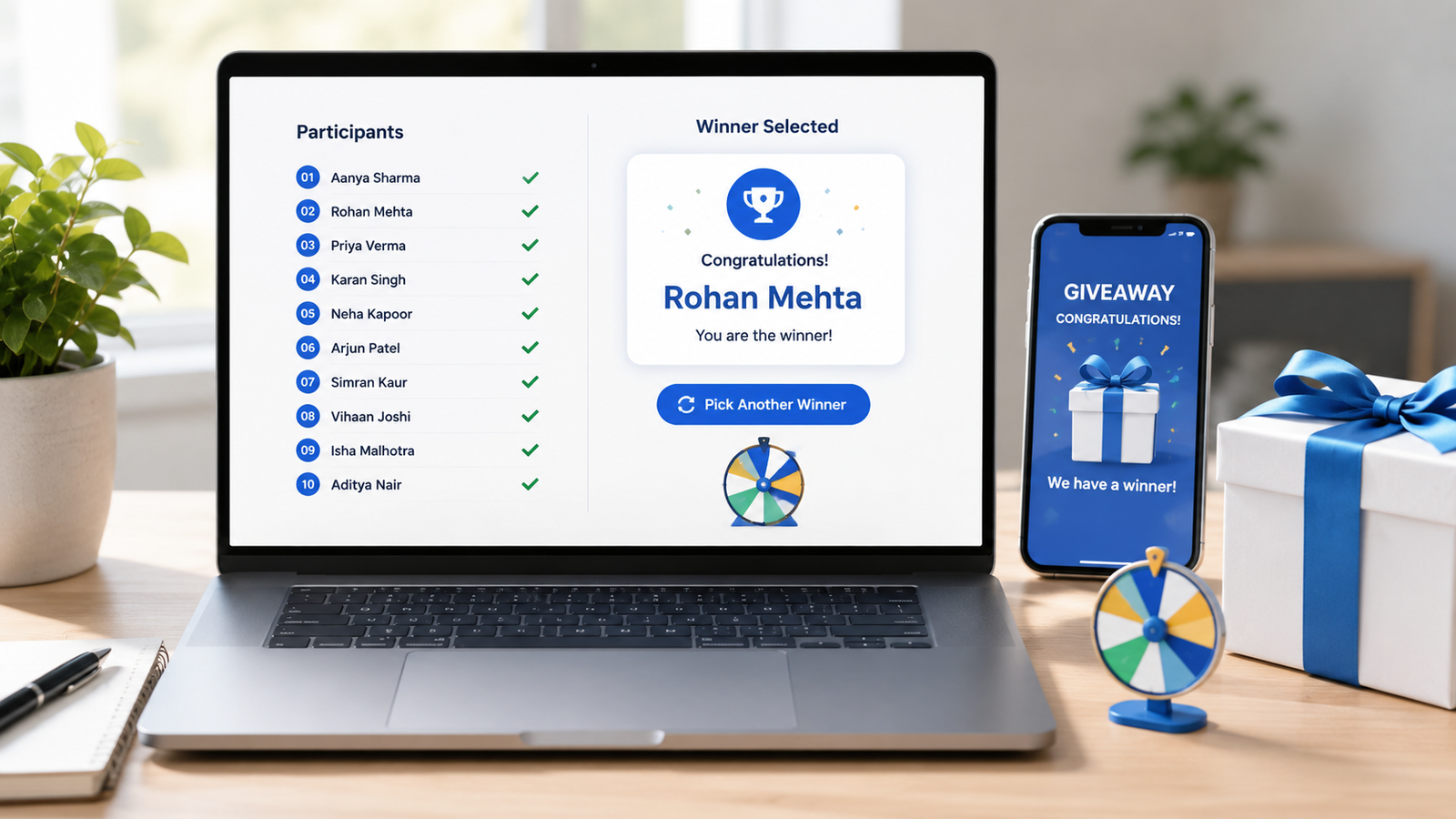
Learn how to choose giveaway winners fairly with a random tool. This practical guide covers entry lists, eligibility checks, rando...
Read More →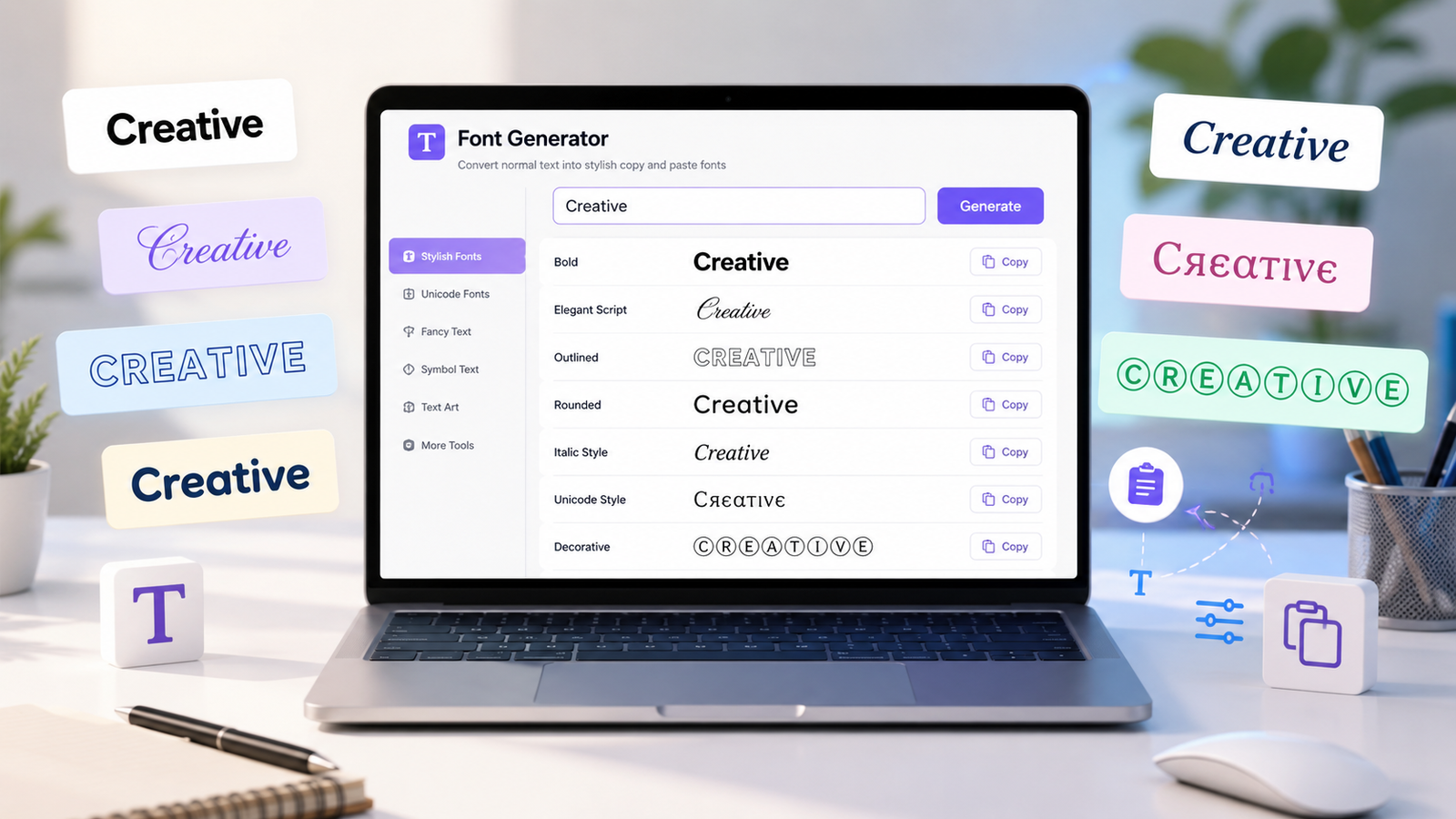
Create stylish copy-and-paste text with a font generator. Explore unique Unicode text styles for social media bios, captions, user...
Read More →Quick answers to the most common questions about HEIC files and our converter.
HEIC is Apple's high-efficiency image format that stores photos at higher quality and roughly half the file size of JPG. iPhones use it by default, but many Windows apps and websites can't open it. RandomCount's free HEIC to JPG converter changes iPhone photos to universally compatible JPGs in your browser.
Need a transparent cut-out instead? Try our free background remover.