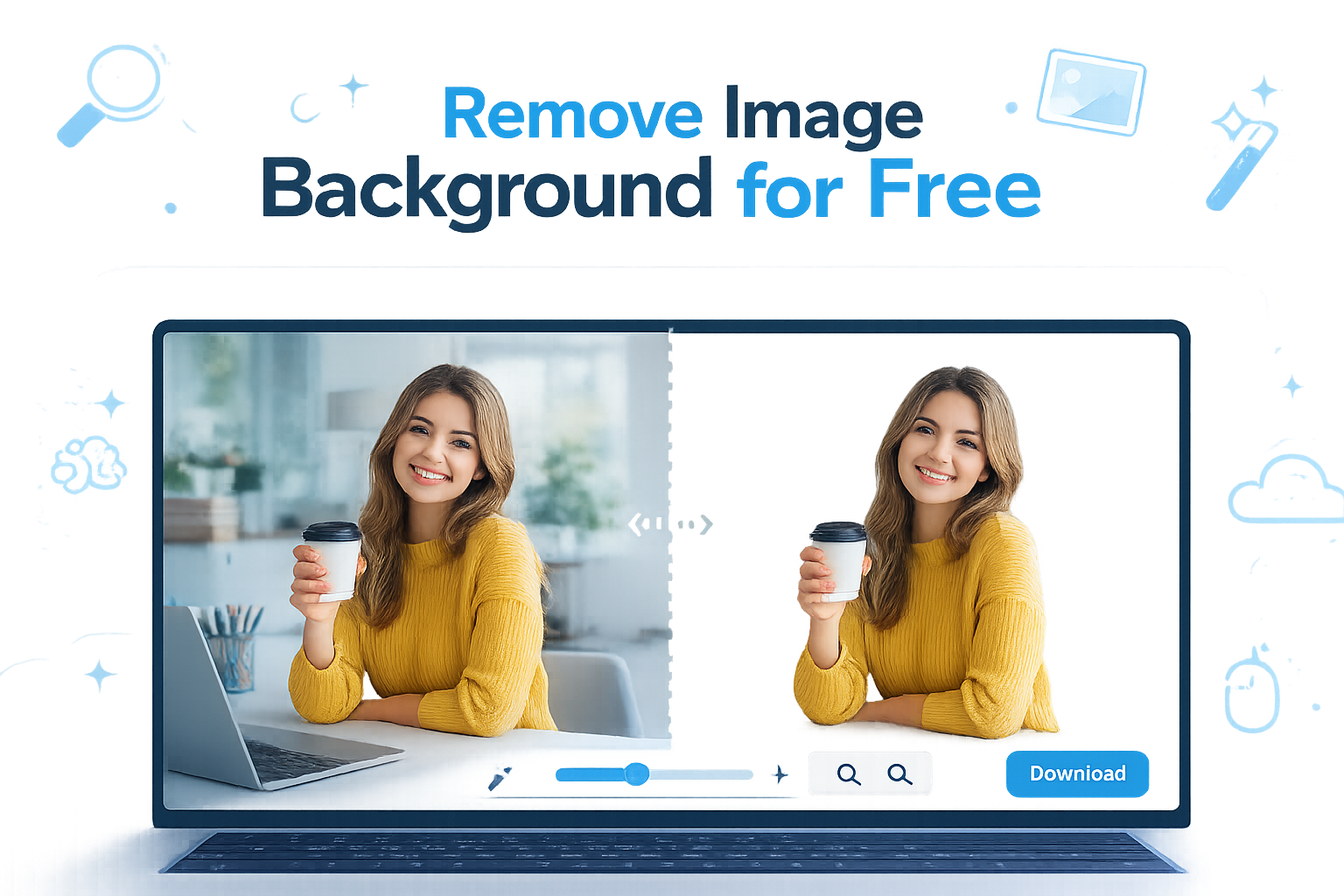
Removing the background from an image used to be a task that required advanced editing software and professional design skills. Today, thanks to modern AI-powered online tools, anyone can remove an image background in just a few clicks without installing image editing software or learning complicated editing techniques.
Whether you're creating product photos for an online store, designing social media graphics, making YouTube thumbnails, or preparing images for presentations, free background remover tools can save you both time and money.
In this guide, you'll learn multiple ways to remove image backgrounds for free, discover the best online tools, understand when to use transparent images, and pick up useful tips for achieving cleaner, more professional-looking results.
Why Remove an Image Background?
A clean background makes an image more versatile and visually appealing. Instead of being limited by the original photo, you can place the subject on different backgrounds, create marketing materials, or use transparent PNG images across various projects.
People commonly remove backgrounds for:
- Product photography for eCommerce websites
- YouTube thumbnails
- Profile pictures
- Business presentations
- Social media posts
- Graphic design projects
- Marketing banners
- School assignments
Removing unnecessary backgrounds also helps maintain a cleaner, more professional visual style across websites and digital content.
If you're looking for an even faster solution, try our Free Background Remover Tool. It uses AI technology to remove image backgrounds in seconds, making it easy to create transparent PNG images without any editing experience.
Step-by-Step: Remove an Image Background for Free
Step 1: Choose a Free Background Removal Tool
Select a trusted online background remover that supports automatic AI detection. Most free tools only require uploading your image before they process it automatically.
Step 2: Upload Your Image
Choose a high-quality image with good lighting. Clear subject separation usually produces better background removal results.
Step 3: Let AI Detect the Subject
Within a few seconds, the AI analyzes your photo and removes the background automatically. Advanced tools accurately recognize people, products, pets, vehicles, logos, and many other objects.
Step 4: Make Small Adjustments
If necessary, use the erase or restore brush provided by some tools to refine edges around hair, clothing, or detailed objects.
Step 5: Download the Final Image
Once you're satisfied with the result, download the transparent PNG image. PNG format preserves transparency, making it suitable for websites, presentations, and graphic design projects.
Tips for Better Background Removal
- Use bright, high-resolution images.
- Keep the subject clearly separated from the background.
- Avoid blurry or low-quality photos.
- Use PNG format if transparency is needed.
- Zoom in and refine edges for professional results.
- Replace the transparent background with a solid color or custom design if required.
If you frequently edit product photos or social media images, explore Photoroom's AI Background Remover. It can remove backgrounds automatically and provides additional editing tools for creating professional-looking visuals.
Where Can You Use Transparent Images?
Transparent background images are incredibly flexible because they blend naturally into different layouts without showing unwanted borders or backgrounds.
If you're running a website or blog, transparent images can also improve the overall design consistency and help create a cleaner visual experience for visitors.
Common Mistakes to Avoid
Although AI-powered background removal tools are highly accurate, the final result often depends on the quality of the original image. /p>
- Using low-resolution images: Blurry or pixelated images can make it difficult for AI to detect edges accurately.
- Poor lighting: Dark images or shadows around the subject may reduce the quality of the cutout.
- Busy backgrounds: Images with many objects or similar colors can confuse automatic background detection.
- Ignoring edge refinement: Hair, transparent objects, and fine details sometimes require a quick manual touch-up.
- Saving in the wrong format: If you need transparency, always export your image as a PNG instead of JPG.
How to Choose the Right Background After Removing It
Removing the background is only the first step. Choosing a suitable replacement background can make your image look even more professional.
Some popular options include:
- Plain white backgrounds for product photos.
- Brand-colored backgrounds for marketing graphics.
- Gradient backgrounds for social media posts.
- Transparent backgrounds for logos and icons.
- Custom designs for YouTube thumbnails and banners.
Always make sure the new background complements your subject instead of distracting from it.
Why Free Online Tools Are a Great Choice
For most users, free online background remover tools provide everything needed without requiring expensive software or advanced editing skills. They are quick, easy to use, and accessible from almost any device with an internet connection.
Whether you're a student, content creator, freelancer, small business owner, or online seller, these tools can help you create professional-looking visuals in just a few minutes.
Many platforms also include additional features such as image resizing, AI enhancements, shadow effects, and background replacement, making them useful for a wide variety of creative projects.
How to Remove an Image Background on Mobile
You don't need a computer or professional editing software to remove an image background. You can use a free online background remover directly from your smartphone's web browser. This is useful when you want to edit profile pictures, product photos, social media images, or pictures for personal projects.
Remove an Image Background on Android
You can create a background-free image on your Android device by following the simple instructions below:
-
Open your preferred online background remover in Chrome or another mobile browser.
-
Visit the RandomCount Free Background Remover.
-
Upload the image you want to edit from your phone's gallery or files.
-
Give the online editor a few moments to identify the main subject and separate it from the surrounding scene.
-
Preview the result and check whether the subject's edges look clean.
-
Download the finished image in PNG format if transparency is supported.
Once the image is downloaded, you can use it in social media posts, presentations, product listings, or other creative projects.
Remove an Image Background on iPhone
iPhone users can also remove image backgrounds using an online tool without installing additional software.
-
On your iPhone, launch Safari or your preferred web browser to begin editing the picture online.
-
Navigate to an online background removal tool.
-
Choose the photograph from your device and import it into the background editing tool.
-
Let the tool identify the main subject and remove the surrounding background.
-
Preview the image and make any available refinements.
-
Download the result and save it to the Photos app or Files app, depending on the browser's download behavior.
Tip: Check the downloaded file before using it. If you need a transparent background, make sure the tool exports transparency rather than placing a white background behind the subject.
How to Remove Background from Product Photos for Free
Product images play an important role in online shopping. A clean product photo helps customers focus on the item rather than the objects or distractions behind it. Removing the original background can also make product images look more consistent across an online store.
You can use a free online background remover to prepare photos of clothing, electronics, accessories, home decor, handmade products, and other items.
Steps to Remove a Product Photo Background
-
Choose a clear product image: Use a photo with good lighting and a sharp outline around the product.
-
Upload the photo: Open an online background remover and select the image from your device.
-
Let AI Separate the Main Subject: Run the background removal feature and give the editor a moment to distinguish your subject from everything behind it.
-
Inspect the edges: Check small details such as straps, handles, jewellery, wires, and transparent packaging.
-
Choose the right background: Use white for a simple catalogue appearance or a suitable brand colour for promotional graphics.
-
Download the final image: Choose PNG when transparency is required, or another suitable format if you have added a solid background.
Tips for Better eCommerce Product Images
-
Keep lighting and image dimensions consistent across product listings.
-
Avoid removing natural product details, such as transparent glass edges or fine fabric textures.
-
Use realistic shadows when they help communicate the product's shape.
-
Make sure the replacement background does not change the product's apparent colour.
-
Check the marketplace's image requirements before uploading the finished photo.
A background remover can simplify product photo preparation, but always review the final image to ensure that the product still looks accurate and realistic.
How to Remove an Image Background Without Losing Quality
Removing an image background should not make the subject look blurry, jagged, or unnatural. Although AI tools can automate much of the process, the original image quality and the tool's export settings can affect the final result.
Start with a High-Resolution Image
Whenever possible, upload the original photograph rather than a screenshot or a compressed copy. A higher-quality source image gives the tool more detail to work with, particularly around hair, fabric, and small objects.
Check the Edges Carefully
Zoom in around the subject after background removal. Look for leftover background colours, missing parts of the subject, rough outlines, or unwanted transparent gaps. Use an erase or restore brush if the tool provides one.
Avoid Excessive Compression
Some tools offer multiple download options or resolutions. Choose the highest suitable output quality available, especially when the image will be used for printing, product listings, or large graphics.
Remember that exporting an image at a larger size cannot restore detail that was missing from the original photograph.
Choose the Correct File Format
PNG is a practical choice when you need a transparent background. If you replace the background with a solid colour, JPEG may also be suitable for photographs, depending on your intended use.
For the best result, compare the final image against both a light and a dark background. This makes unwanted outlines and missed areas easier to spot.
How to Download an Image with a Transparent Background
A transparent background allows an image's subject to appear without a solid rectangle behind it. This makes transparent images useful for logos, product cutouts, profile graphics, presentations, and website designs.
What Is a Transparent PNG?
PNG is an image format that supports transparency. When an image background is removed and the result is exported correctly, transparent areas allow the colour or design behind the image to show through.
However, a PNG file is not automatically transparent. A PNG can also contain a solid white or coloured background.
How to Check Whether Your Image Is Transparent
-
Remove the background using an online tool.
-
Download the result in PNG format with transparency enabled.
-
Open the image in an editor that displays transparent areas as a checkerboard pattern, or place it over a coloured background.
-
Check that the original background does not appear as a white or coloured rectangle.
-
Save or export the image without flattening the transparency.
Important: If a website or tool adds a solid background during export, changing the file extension to PNG will not make that background transparent.
Best Free Background Remover Tools to Consider
Different background removal tools offer different features. Some focus on automatic one-click editing, while others provide additional options for replacing backgrounds, refining edges, or preparing product photos.
Before choosing a tool, check whether it supports your image format, output resolution, desired download format, and editing requirements.
1. RandomCount Free Background Remover
The RandomCount Free Background Remover is the first tool to try if you want to explore the background removal feature available on this website.
Upload an image, follow the available processing steps, and review the output before downloading it. Check the tool's current file-size limits, supported formats, and download options to make sure it meets your needs.
2. Photoroom Background Remover
Photoroom Background Remover is another option to consider, particularly for product photography and promotional visuals. Before editing a large batch of images, check which features are included at no cost and whether download quality, file size, or usage limits apply.
3. Other Online Background Removal Tools
You can also evaluate other reputable online tools based on their output quality, privacy policies, editing controls, and download limits.
How to Choose the Right Tool
Compare background removal tools using the following criteria:
-
Ease of use: Can you remove a background without complicated editing steps?
-
Image quality: Does the output preserve fine details and natural edges?
-
Transparent export: Can you download a transparent PNG?
-
Free usage limits: Are there restrictions on file size, image quantity, or resolution?
-
Editing features: Can you restore missing details or remove leftover background areas?
-
Privacy: Does the service explain how uploaded images are stored and processed?
The best tool is the one that produces a usable result for your specific image without requiring unnecessary editing or unexpected paid upgrades.
Common Problems When Removing Image Backgrounds
Even with AI-powered tools, some images require extra attention. Understanding common problems can help you get better results without repeatedly uploading the same photo.
How to Get Rid of Unwanted White Borders in Background-Free Images
White or coloured outlines can appear when the original background blends into the subject's edges. This is common with light-coloured clothing, bright backgrounds, and objects with fine details.
Try using a higher-quality source image, choosing a photo with better contrast, or refining the edges with an available editing brush.
How to Restore Erased Parts of a Photo During Background Removal
When the main object blends into its surroundings, the editor may struggle to distinguish the two. This can result in small portions of the subject being erased along with the background.
If important details are missing, use the editor's restoration brush to bring those areas back, provided this feature is available. For cleaner results in later edits, photograph your subject in good lighting against a backdrop with clearly different colours.
Why Is My Downloaded Image Not Transparent?
The image may have been exported with a solid background, or the selected download option may not support transparency.
Check the tool's export settings and select PNG with transparency enabled, if available. Then open the downloaded file in an editor that can display transparency.
Why Does the Final Image Look Blurry?
The source photograph may be low-resolution, or the tool may reduce the output dimensions or apply compression.
Keep the finished cutout close to its original resolution whenever possible. Stretching a low-resolution image to a much larger size can reveal pixelation, soften edges, and reduce overall clarity.
Frequently Asked Questions
Which image format supports transparent backgrounds?
PNG is the most popular format because it preserves transparency after the background has been removed.
Are free background remover tools safe to use?
Most well-known platforms are safe for everyday use. Always choose trusted websites and avoid uploading sensitive or confidential images.
Can I remove backgrounds from product photos?
Absolutely. Many online sellers use AI background remover tools to create clean white-background product images for eCommerce websites.
Do I need to install any software?
No. Most background removal tools work directly in your web browser, so there is nothing to install.
Can I edit the image after removing the background?
Yes. Many free tools also let you replace backgrounds, resize images, add shadows, and make additional adjustments.
Final Thoughts
Removing the background from an image no longer requires background removal tool or professional editing experience. Thanks to modern AI-powered tools, anyone can create clean, transparent images quickly and for free.
The key is to start with a high-quality image, choose a reliable online tool, and make small refinements if necessary. Whether you're designing graphics for your website, creating social media content, or preparing product photos for an online store, background removal has become faster and more accessible than ever.
Experiment with different tools to find the one that best fits your workflow, and don't be afraid to explore additional editing features that can further improve your images.
With just a few clicks, you can create professional visuals that stand out across websites, blogs, online marketplaces, and digital marketing campaigns.