Photos are easy to take, but not always easy to manage. One day you have a few document photos, the next day you have screenshots, receipts, ID copies, class notes, product images, or scanned pages sitting in different folders. Sharing them one by one can look messy and unprofessional.
That is why many users prefer to convert images to PDF. A PDF keeps all your photos in one clean file, making it easier to upload, email, print, store, and share. Instead of sending ten separate images, you can combine them into one organized document that opens properly on almost every device.
With the Image to PDF Converter on RandomCount.in, you can turn JPG and PNG images into a PDF directly from your browser. No heavy software, no complicated steps, and no technical knowledge required.
What Does It Mean to Convert Images to PDF?
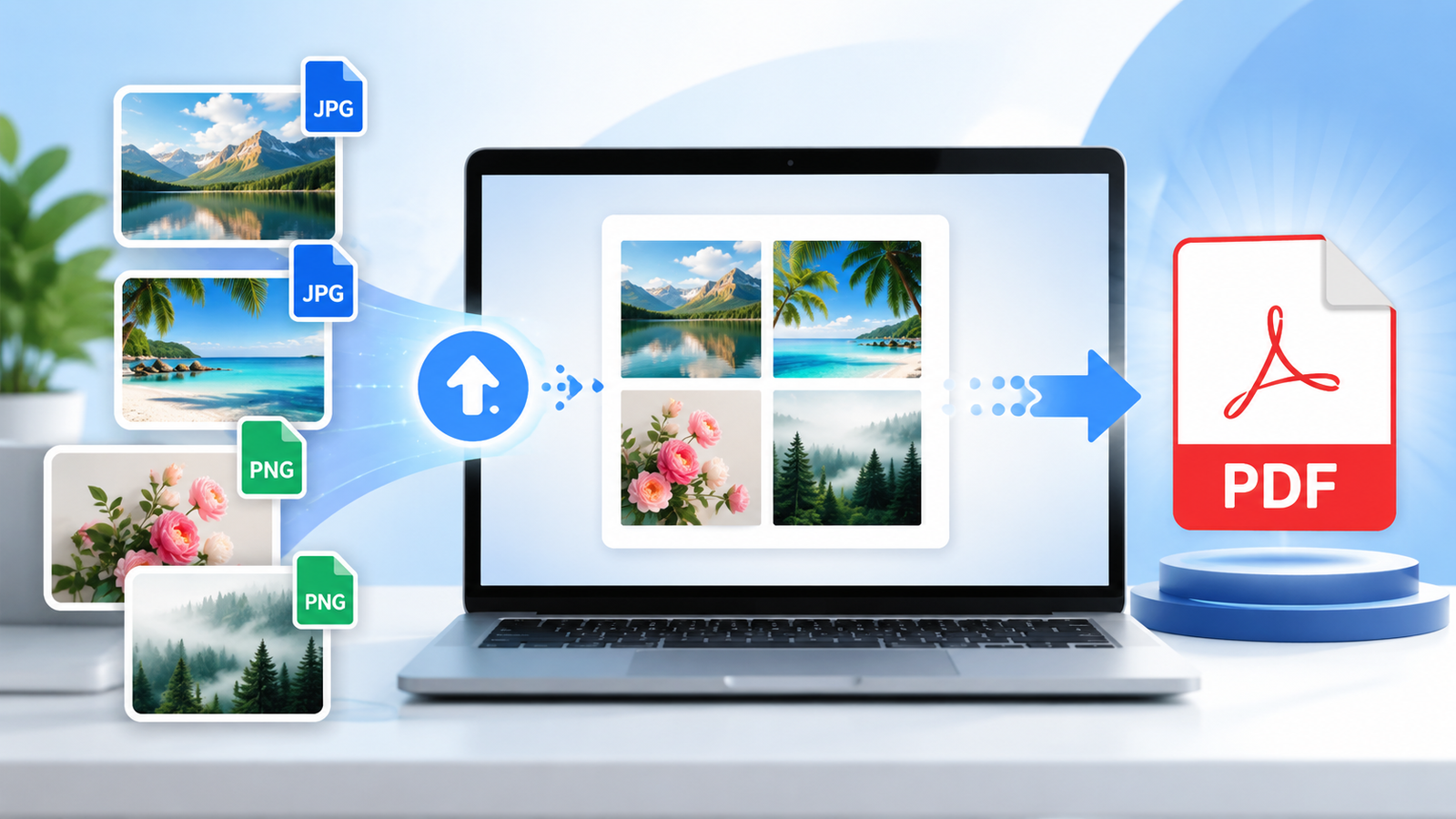
Converting images to PDF simply means taking one or more image files and placing them inside a PDF document. Each image can become a separate page, or you can arrange multiple photos in the order you want before creating the final file.
For example, if you have photos of handwritten notes, bills, certificates, forms, or project screenshots, you can combine them into one PDF. This makes the file easier to read and much easier to submit online.
PDFs are widely used because they keep content stable. The layout does not change easily, and the file can be opened on phones, laptops, tablets, and office systems without much trouble.
Why Convert Images to PDF Instead of Sending Photos?
Sending images separately may work for casual sharing, but it is not ideal for school, business, documentation, or official use. A group of loose images can get downloaded in the wrong order, lost in chat apps, or opened at different sizes.
A PDF solves that problem by keeping everything together. The person receiving the file can scroll page by page, print it properly, and save it as one document.
Main Benefits of Image to PDF Conversion
- Keeps multiple photos in one organized file
- Makes document sharing cleaner and more professional
- Helps maintain image order from first page to last page
- Works well for printing, uploading, and email attachments
- Reduces confusion when submitting forms, notes, or records
- Looks better than sending scattered JPG or PNG files
Whether you are a student submitting homework or a professional sending scanned documents, a PDF usually feels more complete and reliable.
How to Convert Images to PDF Online
The process is simple. You do not need editing skills or paid software. An online image to PDF tool lets you upload photos, arrange them, choose basic settings, and download the final PDF within a few clicks.
Step-by-Step Process
- Open the Image to PDF Converter.
- Upload your JPG or PNG images from your device.
- Arrange the images in the correct order.
- Select page size, orientation, and margin if needed.
- Click download and save your PDF file.
This is useful when you need to create a PDF quickly from phone photos, scanned pages, screenshots, or downloaded images.
Best Uses for an Image to PDF Converter
An image to PDF converter is helpful in many everyday situations. You may not need it every hour, but when you do, it can save a lot of time.
For Students
Students often take photos of notes, assignments, diagrams, homework pages, and project work. Instead of uploading many separate images, they can combine everything into one PDF and submit it neatly.
For Office Work
Office users can convert receipts, signed forms, ID copies, bills, invoices, and scanned paperwork into PDF format. It keeps records easier to store and share.
For Freelancers and Designers
Designers, photographers, and freelancers can combine visual samples, drafts, mood boards, or screenshots into one PDF before sending them to clients.
For Personal Documents
You can also use PDF files for personal records such as certificates, travel documents, insurance papers, medical receipts, or home bills.
Tips Before You Convert Photos into PDF
A good PDF starts with good images. Before you convert images to PDF, check whether your photos are clear, straight, and readable. Blurry or dark images will still look unclear inside the PDF.
- Use clear, bright photos whenever possible.
- Crop extra background before converting documents.
- Keep pages in the correct order before downloading the PDF.
- Use portrait mode for documents and landscape mode for wide images.
- Resize large photos with the Image Resizer if the file feels too heavy.
These small checks make your final PDF look cleaner and easier to read.
JPG, PNG, or WEBP: Which Images Should You Convert?
Most people convert JPG and PNG images into PDF because these formats are common on phones, cameras, scanners, and design tools. JPG is usually best for photos, while PNG is better for screenshots, text-heavy images, and graphics with sharp edges.
WEBP is also popular for websites because it can reduce image size while keeping good quality. If you are working with website images, you may also find the JPG to WEBP Converter useful before uploading visuals online.
For documents, the main goal is readability. Choose the clearest image version before turning it into a PDF.
Why Use RandomCount.in for Image to PDF Conversion?
RandomCount.in is built for simple online tools that save time. The Image to PDF tool is easy to use, works in the browser, and helps users combine multiple images into one PDF without installing extra software.
The tool is useful for students, teachers, office workers, freelancers, business owners, and everyday users who want a quick way to manage image files.
Key Advantages
- Free online image to PDF conversion
- Simple interface for beginners
- Supports multiple images
- Useful page size and orientation options
- No need to install desktop software
- Works from mobile, tablet, and desktop browsers
Try Other Useful Tools
Along with image conversion, you can also try other free tools on RandomCount.in: Image Resizer, JPG to WEBP Converter, Blog Guides, and Random word counter.
Frequently Asked Questions
1. Can I convert multiple images into one PDF?
Yes. You can upload multiple images, arrange them in order, and combine them into one PDF file.
2. Which image formats are best for PDF conversion?
JPG and PNG are the most commonly used formats. JPG works well for photos, while PNG is better for screenshots, graphics, and text-based images.
3. Is converting images to PDF useful for students?
Yes. Students can combine assignment photos, handwritten notes, diagrams, and project pages into one PDF for easy submission.
4. Can I use an image to PDF converter on mobile?
Yes. Online tools like RandomCount.in work directly in a browser, so you can convert photos from your phone without installing software.
5. How can I make my PDF look better?
Use clear images, keep pages in the right order, choose the correct orientation, and resize very large photos before converting.
Final Thoughts
If you regularly deal with document photos, screenshots, notes, receipts, or scanned pages, learning how to convert images to PDF can make your work much easier. A PDF keeps everything in one place, looks professional, and is simple to share.
Instead of sending many separate image files, use theImage to PDF Converter on RandomCount.in and create one clean, organized PDF in just a few steps.