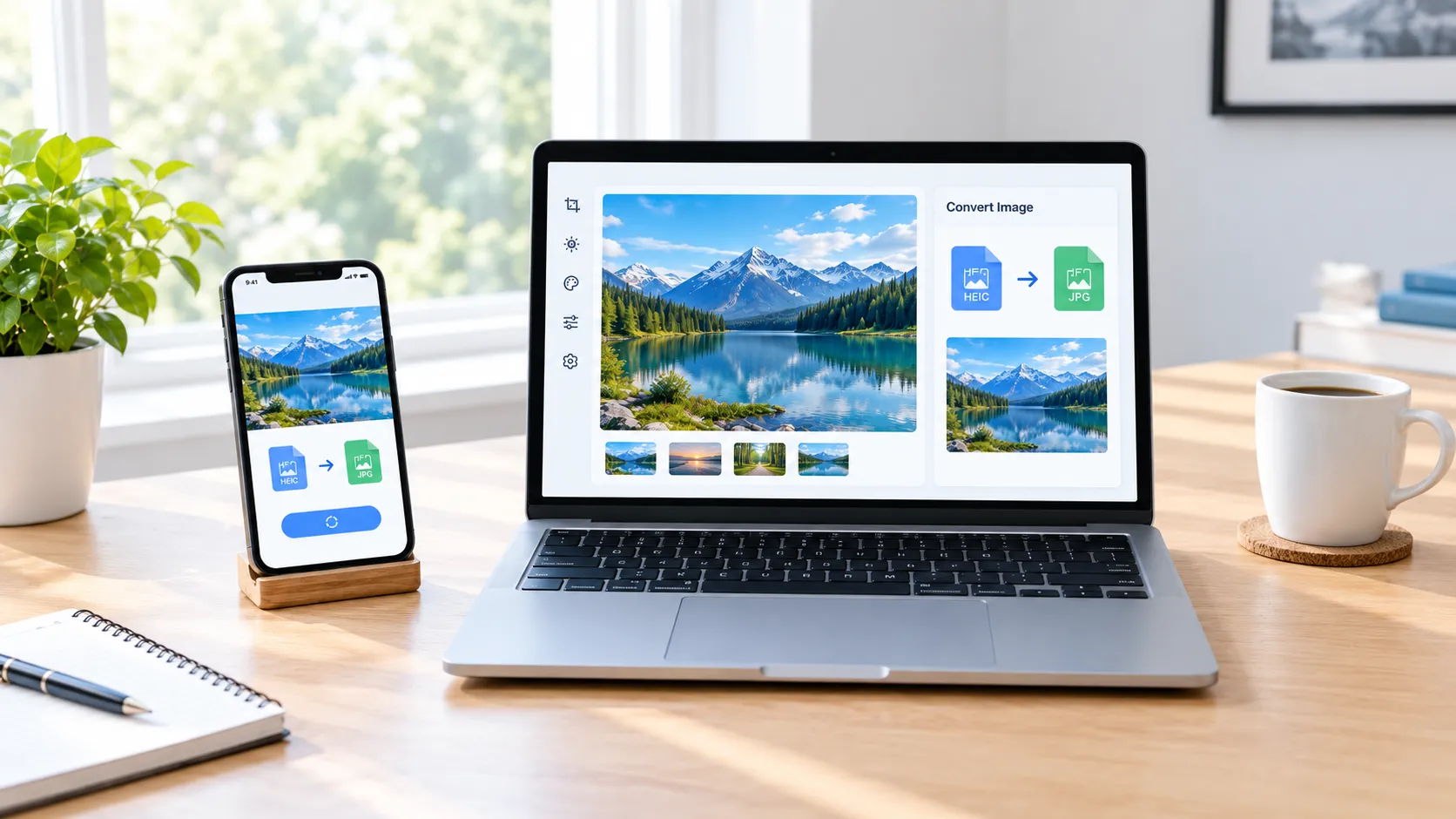
HEIC photos help save storage space while maintaining good image quality, but some websites, apps, and older devices may not support them. Converting a HEIC image to JPG can make it easier to upload, share, edit, and open on different devices.
In this guide, you’ll learn how to convert HEIC to JPG online, on an iPhone, on a Windows PC, and on a Mac. You’ll also find out which method to choose, how to check image quality after conversion, and what to do if a HEIC file won’t open. If your photos contain private or sensitive information, you’ll learn what to consider before uploading them to an online converter.
What Is HEIC, and Why Convert It to JPG?
HEIC stands for High Efficiency Image Container. JPG, also written as JPEG, is a widely supported image format that works with most browsers, websites, editing apps, and devices.
You may need to convert HEIC to JPG when a website does not accept HEIC uploads, an app cannot open the original file, or you need to share photos with someone using a device that does not support the format.
HEIC and HEIF are closely related terms, but they are not exactly interchangeable: HEIF is the image-container format, while HEIC commonly refers to HEIF images encoded using HEVC. On Apple devices, these formats can preserve good image quality with less storage space than JPEG in many cases. JPEG is often a more convenient choice when you need broad compatibility with websites, apps, and devices. Apple explains the format differences and compatibility options in its official HEIF and HEVC support guide.
How to Convert HEIC to JPG Online
To convert a HEIC image online, follow these steps:
-
Open the RandomCount HEIC to JPG converter.
-
Select the HEIC photo using the upload or file-selection control shown on the page.
-
Follow the available conversion options. If the tool asks you to select an output format, choose JPG or JPEG.
-
Start the conversion using the button provided by the tool.
-
When processing finishes, use the available download option to save the converted image.
-
Open the downloaded file and confirm that the image displays correctly and is saved in JPG or JPEG format.
The exact controls depend on the converter interface. If the tool rejects your HEIC image or does not offer JPG output, use another compatible conversion method described in this guide.
Test the Conversion Before Using the Tool for Important Photos
I tested the conversion process using a sample HEIC photo. After conversion, I opened the resulting JPG and checked that the image displayed correctly. I also compared the output file's dimensions and size with the original to understand how the conversion affected the file.
The result can vary depending on the source image and conversion settings, so check your own output before using it for an important upload.
Is It Safe to Convert HEIC to JPG Online?
Before uploading a photo, check whether the service explains how uploaded files are processed, whether files are stored, and when they are deleted. For confidential images, an offline conversion method using a trusted app on your own device may be a better choice. A website’s privacy statement is useful, but it is not by itself proof that every upload is immediately deleted.
For example, a holiday photo may be suitable for an online converter if you are comfortable with the service's privacy practices, while a photo containing an identity document or private information may be better converted offline. If you choose an online tool, check its file-handling policy and avoid assuming that uploaded files are deleted immediately unless the service clearly explains its deletion practices.
How to Convert HEIC to JPG on iPhone
If you already have HEIC photos on your iPhone, you can use a trusted image-conversion app or a compatible online converter to create JPG copies. The exact steps depend on the app or service you choose.
-
Open the photo you want to convert.
-
Select the Share option or upload the photo to your chosen converter.
-
Choose JPG or JPEG as the output format, if prompted.
-
Start the conversion and wait for it to finish.
-
Save or download the converted JPG.
-
Open the saved file to check that the image looks correct.
Keep the original HEIC photo until you have confirmed that the JPG version is saved properly. If you prefer not to upload photos online, choose an offline app that supports HEIC-to-JPG conversion.
Save Future iPhone Photos in a More Compatible Format
If you want your iPhone to capture future photos in a more widely compatible format, open Settings → Camera → Formats → Most Compatible. On supported devices, this setting makes new photos save as JPEG instead of HEIF. It does not convert photos that are already saved in HEIC format.
For the latest device-specific instructions, refer to Apple Support's guide to HEIF and HEVC media.
This setting affects new photos captured after you change the format. It does not convert HEIC images already saved in your Photos library. If you need to convert existing images, export or convert those files separately. Depending on your iOS version and sharing method, some photos may also be converted automatically when transferred to a device or app that does not support HEIC.
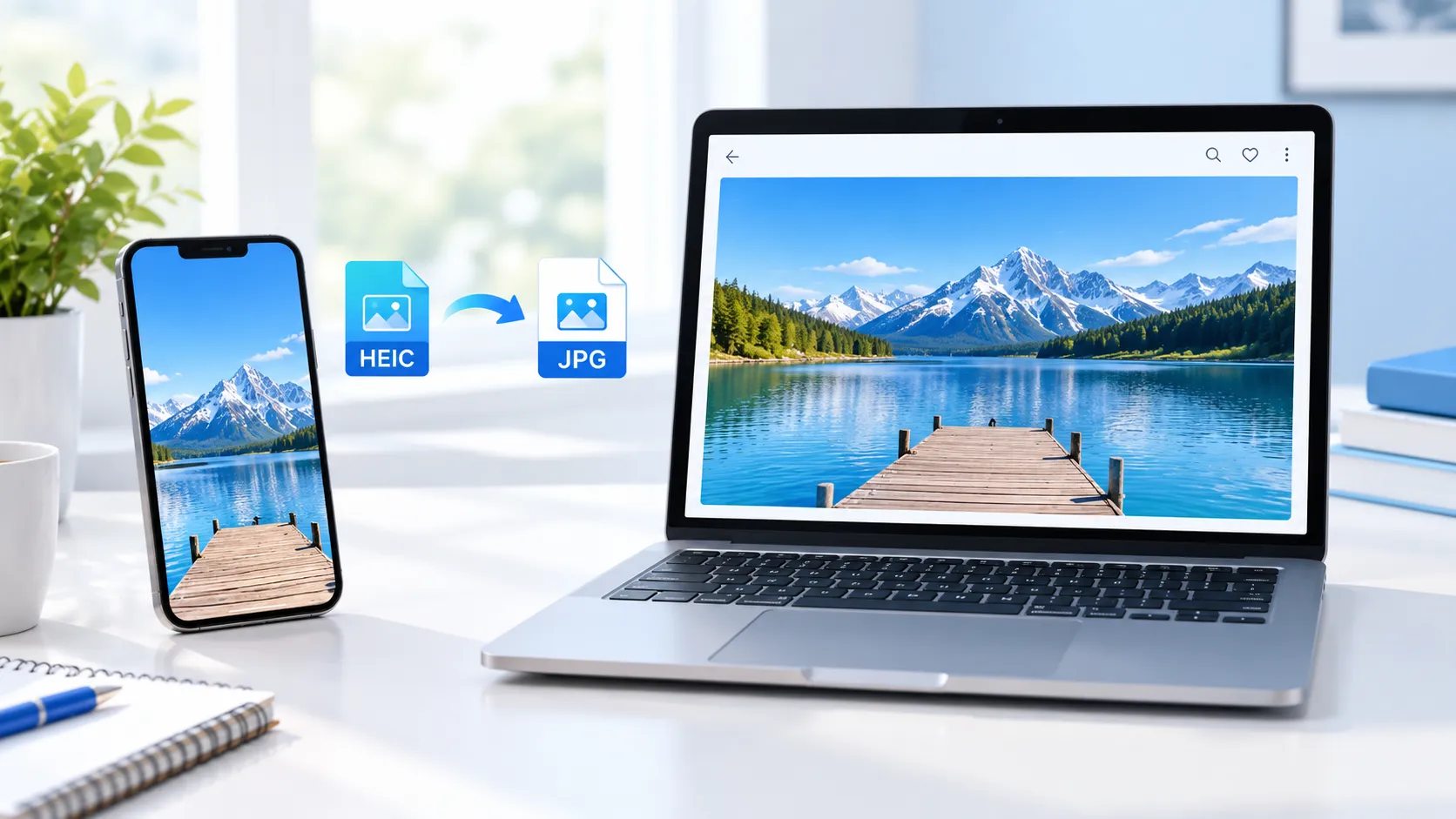
Convert HEIC Photos into JPG Files on Your Windows PC
Windows users may encounter HEIC files that do not open in the Photos app. This usually means the installed application or Windows components do not currently support that image format.
Follow these steps to convert the image:
-
Locate the HEIC file in File Explorer.
-
Try opening it in the Photos app or another trusted image application that supports HEIC.
-
If Windows requests additional support, check the Microsoft Store for HEIF Image Extensions and follow the official installation instructions.
-
Once the image opens, use an application's Export or Save As feature that explicitly supports JPEG output.
-
Select JPG or JPEG as the output format, choose a destination folder, and save the new file.
-
Open the saved JPG to confirm that the image displays correctly.
What If Windows Cannot Open a HEIC File?
If Windows cannot open your HEIC image, first confirm that the file downloaded or transferred completely. Your Photos app may need HEIF image support, which you can check in the Microsoft Store. Depending on your Windows setup and the application you use, additional codec support may be required. Once the image opens, use an application that supports exporting to JPEG. If you only need a JPG copy, a trusted converter that supports HEIC is another option. For further troubleshooting, see Microsoft Support: Photos app cannot view this file type.
How to Convert HEIC to JPG on a Mac
Mac users can often convert HEIC images without installing additional software because Apple's Preview app supports exporting compatible images to other formats.
Here's how:
-
Find the HEIC image in Finder.
-
Open it with Preview.
-
Select File → Export.
-
Choose JPEG from the format menu.
-
Set the quality level if the option is available.
-
Select a folder and save the file.
Convert Multiple HEIC Photos on Mac
If you need to convert several HEIC photos on a Mac, first check whether your chosen app supports batch export. Preview can export an image as JPEG through File > Export, but the available workflow for multiple images depends on the macOS version and the method you use. For a large collection, choose a trusted app or workflow that explicitly supports batch conversion. Convert a small sample first, then check the resulting images before processing the entire collection.
Will Converting HEIC to JPG Reduce Image Quality?
The visible difference depends on the image, export settings, and compression level. Higher-quality settings generally preserve more visual detail, while stronger compression can create blur or other visible artifacts.
JPEG files are not always smaller than HEIC files. The final size depends on image dimensions, image content, and compression settings. If you need to meet a website's upload limit, check both the file size and the required dimensions after conversion.
Check fine details, text, edges, and subtle color changes. Keep the original HEIC file if you may need it later, and avoid repeatedly saving the same image through lossy formats.
For more background, read the MDN guide to image file types.
How to Check Your JPG After Conversion
To check the result, compare the original HEIC image with the converted JPG at the same zoom level. Look closely at fine details such as hair, leaves, text, edges, and areas with subtle colour changes. Also compare the image dimensions and file size.
After conversion, compare the original HEIC and the new JPG at the same zoom level. Check fine details, text, edges, colours, image dimensions, and file size. If the JPG looks noticeably worse, try a higher-quality export setting or another converter. Keep the original HEIC until you have confirmed that the converted image meets your needs. For more information, see the MDN guide to image file types.
Common HEIC to JPG Conversion Problems
The Converter Cannot Open the HEIC File
Check that the original file is complete and has a supported HEIC or HEIF format. If the converter cannot process it, try a compatible app or another trusted conversion method.
The Converted JPG Looks Blurry
Choose a higher-quality output setting if one is available. Compare the JPG with the original at the same zoom level, and keep the HEIC version if the converted image loses important detail.
The JPG File Is Larger Than Expected
JPG files are not always smaller than HEIC files. File size depends on image dimensions, image content, and compression settings. If you need a smaller file, adjust the output quality carefully and check the result.
The Converted JPG Will Not Open
Make sure the conversion finished successfully and that the downloaded file is complete. If it still will not open, try downloading it again or converting the original image with another compatible tool.
Renaming a file from .heic to .jpg does not convert its actual format.
A Website Still Rejects the JPG
Check the website's allowed formats, maximum file size, and image dimension requirements. Converting to JPG may solve the format issue, but the image may still exceed the site's size or dimension limits.
Why Are the Colours Different After Converting HEIC to JPG?
Colours, brightness, or contrast can look slightly different after conversion because image processing, colour-profile handling, HDR support, and JPEG compression can affect the result. Compare the original and converted images in the same image viewer when possible. If the difference is noticeable, try exporting with a higher-quality setting or using another converter that supports the source image correctly. Keep the original file if accurate colour reproduction is important.
Why Is My Converted JPG Not the Same Size as the HEIC File?
The output file size depends on image dimensions, image content, compression settings, and how the converter processes the photo. A JPG can be smaller or larger than its HEIC original. If you need a smaller file for uploading, check the destination website’s file-size and dimension limits before reducing image quality.
Online vs Offline HEIC to JPG Conversion
An online converter is convenient when you need to convert a few photos without installing software. It can be useful when working across different devices, provided the service supports your files and you are comfortable uploading them.
An offline method is more suitable when you want to keep private photos on your own device or need to work without an internet connection. Built-in tools and installed apps may also be more practical for repeated conversions.
The best choice depends on your privacy needs, internet access, number of images, and the tools available on your device.
How to Choose the Right HEIC to JPG Method
Choose your conversion method based on what matters most to you:
-
For a quick, occasional conversion: Use a reputable online converter if your photo is not sensitive and the tool supports your file.
-
For private or confidential photos: Prefer a trusted offline app that processes images on your device.
-
For existing photos on an iPhone: Use a conversion or export method supported by your chosen app. Changing the Camera format setting affects future photos, not existing ones.
-
For Windows: Check whether your Photos app can open HEIC files. Install the required image extension if needed, then use an app that can export the image to JPG.
-
For Mac: Open the image in Preview and use File > Export to save it as JPEG.
-
For multiple photos: Choose a tool or app that explicitly supports batch conversion, and check a sample of the output before processing your entire collection.
Before choosing, consider the number of photos, privacy requirements, image quality, file-size limits, and whether you need to install software.
If you need to combine your converted images into a PDF document, you can also try RandomCount's Image to PDF tool.
Frequently Asked Questions
Is HEIC better than JPG?
HEIC can store photos more efficiently, while JPG is supported by a wide range of devices, apps, and websites. The better format depends on whether you prioritise storage efficiency or compatibility.
Does converting HEIC to JPG reduce quality?
It can, because JPEG compression may discard some image data. The result depends on the converter and its quality settings. Keep the original HEIC file if preserving the original matters.
Can I convert HEIC to JPG without installing software?
Yes. You can use a compatible online converter in a browser. Before uploading photos, check the service's privacy policy and make sure you are comfortable with its file-handling practices.
Can I convert HEIC to JPG on an iPhone?
Yes. You can use a compatible conversion app or an online converter. You can also set supported iPhones to capture future photos in JPEG using the Most Compatible camera setting.
Can I convert multiple HEIC photos at once?
Yes, if your chosen converter or application supports batch conversion. Check its file-count and size limits before uploading or selecting multiple photos.
Does changing the file extension convert HEIC to JPG?
No. Renaming a file from .heic to .jpg does not change its underlying format. Use an actual image-conversion tool to create a valid JPG file.
Final Thoughts
Converting HEIC to JPG can make photos easier to upload, share, and open in apps or devices that do not support HEIC. The best method depends on your device, the number of images you need to convert, and whether privacy or convenience matters most.
For a quick conversion, an online tool may be suitable for non-sensitive photos. For private images, consider an offline app. On an iPhone, remember that changing the camera format affects future photos rather than converting existing files. On a Mac, Preview offers a built-in way to export supported images as JPEG.
After converting, open the JPG, check its dimensions and appearance, and keep the original HEIC file until you are satisfied with the result. These simple checks can help you avoid file-format problems and preserve the version you need.